


PhotoBoost - AI Photo Enhancer
4.64.32K Reviews
App Specs
- Version
- 1.93.2
- Updated On
- License
- Free
- Downloads
- 10,000,000+
- Developer
- Tap AI
- Categories
- Photography
- Platform
- Android, iOS
Screenshots

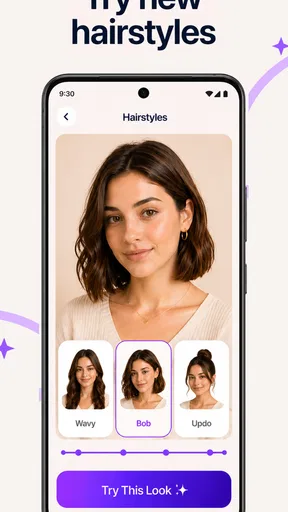
 Analysis by AppCompare
I usually notice the need for a photo enhancer after the moment has passed: a dim family picture, a soft shot from a night out, or an old image that looks less clear on a modern screen. That is the problem PhotoBoost - AI Photo Enhancer is meant to address. It is a free photography app from Yoob AI, and its appeal is straightforward: try to make an imperfect picture more usable without asking me to learn a full editing suite. I’d treat it as a rescue step, not a guarantee that every blurry or poorly lit image can be restored.
Start with the right kind of photo
Before I edit, I decide what I want to keep. For a picture that matters because of the people or moment in it, I’m willing to accept a slightly artificial-looking result if the faces and setting become easier to see. For a picture where accurate texture and color matter more, I’m cautious: AI enhancement can make an image look cleaner while also changing how its details appear. That distinction helps set sensible expectations before tapping anything.
A useful first test is to choose a copy of a photo rather than the only version you care about. I’d compare the original and enhanced result at the same screen size, then zoom in on faces, hair, and fine edges. If the app has made those areas look overly smooth or oddly crisp, the edit may work at a glance but fail when shared or printed. Keeping the original also gives me an easy way back if the improvement is not convincing.
From gallery to a shareable result
My practical workflow is simple: pick one image with a clear problem, apply the enhancement, inspect the before-and-after view, and decide whether the change helps the purpose of that shot. A dim concert photo, for example, may benefit from brighter tones and more visible color, even if it cannot recover every detail lost to movement or darkness. I would not process a whole album before checking a few representative images; that small pause can prevent a batch of edits from giving every photo the same unwanted look.
Batch processing is handy when I have a group of pictures from the same outing, but it is best used as a time-saver rather than a quality shortcut. Images from one event can still differ: one may be a close portrait, another a wide scene, and another may already be bright enough. I’d review the batch afterward and keep only the results that look natural. For a few special shots, individual adjustment is worth the extra attention.
The handoff matters too. Once I like an edit, I may want to send it to a friend, post it, or keep it alongside the original in my gallery. Before sharing, I check that the enhanced version is the one I selected and that it still looks good outside the app’s comparison view. A dramatic preview can be flattering on its own screen, but a quick look in the place where I’ll actually use the image is a better final check.
First Impressions: Getting Started
So, diving into PhotoBoost, the first thing I noticed was its super clean interface. It's one of those apps where you don't need a tutorial to figure things out. Everything's laid out nicely, and the icons are intuitive. I appreciate that because I’m one of those people who like to dive right in without reading a manual. Just a quick download from the App Store, and I was ready to go.
Worth Reading Before You Choose

Flipboard Shows What News Apps Must Do Beyond the Feed

Switching to Android Auto Means Rethinking Your Driving Routine

Google Calendar Makes a Crowded Week Easier to Manage

Ludo King Makes the Most of the Minutes Between Plans

Baby Panda World Brings Quick Play to Modern Phones, but Its Game Library Feels Busy

ESPN’s Live Game View Makes Following Close Games Easier
The app is relatively lightweight, which means it doesn’t hog all the storage space on your phone. This is a huge plus if, like me, you’re always battling with "Storage Almost Full" notifications. The setup is painless, and in no time, I was ready to enhance my first photo.
The Magic of AI: How It Works
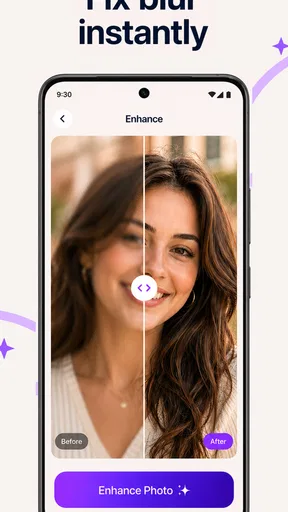
Now, onto the exciting part: how does it actually enhance photos? The app leverages advanced AI technology to improve image quality by reducing noise, sharpening details, and adjusting lighting. It’s like having a mini Photoshop in your pocket, minus the complicated tools.
To test it out, I chose a photo I took during a concert. You know how those can turn out—dark, blurry, and just a mess. But after running it through PhotoBoost, the difference was night and day. The app managed to brighten the image, reduce the blurriness, and bring out the colors in a way that was pretty impressive.
Features That Stand Out
One of the standout features for me was the batch processing option. If you’re like me and tend to take a million photos in one sitting, this feature is a lifesaver. You can enhance multiple photos at once, saving a ton of time.
Another cool feature is the before-and-after slider. This lets you see the improvements in real time, and it's oddly satisfying to watch your photos transform right before your eyes. Plus, for those who like a bit of customization, there are sliders to manually adjust the enhancement levels.
User Experience: Smooth Sailing?
In terms of performance, the app runs smoothly without any noticeable lag. I did notice that while it works wonders on most photos, some images with extreme lighting issues might not achieve perfection. But then again, no app is perfect, right?
One thing I found delightful was that the app doesn’t bombard you with ads. There are some premium features, but the free version is robust enough for most casual users. You can definitely enhance a good number of photos without feeling the need to upgrade immediately.
Where it fits among photo-editing options
I see this as a more focused choice than a general-purpose editor. A typical photo editor gives me broader control over exposure, color, cropping, and the overall look; that flexibility is useful when I want to shape an image deliberately. PhotoBoost is the one I’d reach for when the main problem is clarity or a weak-looking source photo and I want to see whether automated enhancement can help. If I’m trying to create a consistent style across a set of pictures, a conventional editor is usually the better starting point.
It also occupies a different space from simply using the edits already available in a phone’s gallery. Those controls are often enough for a photo that only needs a small brightness or color adjustment. I would not add another app to that workflow for every ordinary snapshot. The extra step makes more sense when an image is noisy, soft, or important enough that I want to compare a stronger enhancement against the untouched file.
A realistic test: rescuing a family picture
Imagine I’m sorting through a family gathering and find one picture where everyone is in the frame, but the room was dim and the camera caught a little softness. I’d open that single photo, make an enhanced version, and compare it with the original before sending it to relatives. If faces become easier to recognize and the room still looks believable, the edit has done its job. If skin looks waxy or edges appear unnaturally defined, I’d keep the original and try a gentler manual adjustment elsewhere instead.
This kind of test is more useful than judging the app on a dramatic transformation alone. A result can look impressive because it is brighter, yet still be a poor match for the memory. I pay special attention to skin tones and areas with fine patterns, such as clothing or foliage, because those details reveal when an edit has pushed too hard. The practical goal is not to make every old image look newly photographed; it is to make a particular picture clearer without losing what made it feel like that moment.
Who is likely to get the most from it?
For someone who mainly takes photos on a phone and wants a quick attempt at improving a disappointing shot, the low barrier is the strongest reason to try it. It suits casual users who would rather compare an automatic result than move through a long chain of editing controls. It can also help when I’m preparing a few pictures to share and want to improve their appearance without turning the task into a separate hobby.
I would be more selective if I were a photographer who needs precise, repeatable edits or must preserve fine detail faithfully. A dedicated editor gives more room to control the image, while a genuinely blurred photo may lack information that no enhancement can recover. Anyone expecting a soft, moving subject to become perfectly sharp should lower those expectations. The app can make a photo more pleasant to look at, but it cannot reverse every limitation of how the image was captured.
Free to try, with a paid ceiling to consider
The app is free to install, but it also offers in-app purchases ranging from $1.99 to $199.90 per item. I’d start with the free experience and decide based on my own routine rather than assume a paid option is necessary. If I only edit the occasional photo, paying may not add enough value for me; if I repeatedly rely on the app, I’d first check what a purchase unlocks and whether that specific benefit matters to my workflow.
PhotoBoost has an average rating of 4.6 from around 602,000 ratings, and it has been installed over 5 million times. Those figures suggest that many people have tried it, but they do not tell me whether it will suit a particular photo or editing taste. It is rated for Everyone, and its current version is 1.1.67, with Android 9 as the minimum operating system requirement. The most useful decision is still a personal one: test it on a photo you can afford to compare, then judge the result rather than the promise of a dramatic fix.
Where the flow can break
The weak point in any enhancement workflow is the source image. Severe motion blur, clipped highlights, or deep shadows can leave little meaningful detail to work with. A processing result may make the image brighter or sharper-looking without restoring the original scene accurately. In those cases, I treat the output as an interpretation, not a faithful repair, and keep the original untouched.
There is also a small decision cost after the automatic step: I still need to inspect the edit, choose between versions, and decide where to use it. Batch processing saves time on selection, but it does not remove the need for judgment. I would avoid judging only from a tiny thumbnail or a dramatic slider reveal. A close look at the areas that matter, followed by a check at normal viewing size, is a more reliable way to decide whether the change is worth keeping.
Wrap-Up: Is PhotoBoost Worth It?
So, is PhotoBoost - AI Photo Enhancer worth the download? Absolutely, especially if you love capturing moments but aren’t a fan of heavy editing. It’s user-friendly, effective, and does a fantastic job of turning average photos into something you’d want to share. While it might not replace professional editing software for high-end projects, it’s perfect for everyday use.
All in all, PhotoBoost is a handy tool that enhances your photos with minimal effort. If you’re tired of your photos not doing justice to the moments you capture, give it a shot. Who knows, you might just find your new favorite app.
Pros
- Enhances photos with AI precision
- User-friendly interface design
- Fast processing speed
- Supports multiple image formats
- No ads in the premium version
Cons
- Limited features in free version
- Requires internet for AI processing
- Occasional lag on older devices
- Subscription model may be pricey
- High battery usage during enhancement
FAQs for PhotoBoost - AI Photo Enhancer
What is PhotoBoost - AI Photo Enhancer?
PhotoBoost - AI Photo Enhancer is a cutting-edge application designed to enhance your photos using advanced artificial intelligence algorithms. It automatically improves the quality of your images by adjusting brightness, contrast, and sharpness, providing professional-level results with just a few taps. Ideal for both casual and professional photographers.
How does PhotoBoost enhance photo quality?
PhotoBoost utilizes AI technology to analyze each photo and make precise adjustments to various aspects such as exposure, color balance, and noise reduction. The AI algorithm ensures that enhancements are applied intelligently, preserving the natural look of your photos while significantly improving their overall quality.
Is PhotoBoost easy to use for beginners?
Yes, PhotoBoost is designed with user-friendliness in mind, making it accessible to beginners. The interface is intuitive, featuring simple controls and a straightforward process for enhancing photos. Users can easily navigate the app and apply enhancements with minimal effort, thanks to its automated features.
Does PhotoBoost support batch processing?
Absolutely, PhotoBoost supports batch processing, allowing users to enhance multiple photos simultaneously. This feature saves time and effort, especially for users with a large number of images to process. It maintains the quality of each enhancement, ensuring consistent results across all photos in the batch.
Are there any in-app purchases in PhotoBoost?
PhotoBoost offers a range of features for free, but there are premium features available through in-app purchases. These may include advanced editing tools, additional filters, and higher resolution processing. Users can choose to upgrade for a more comprehensive editing experience, but the core functionality remains accessible without payment.


